Frequently Asked Questions
Find answers to common questions about ReadStory
General
- What is ReadStory?
- ReadStory is a powerful platform that lets you create interactive storybooks from photos using OCR (Optical Character Recognition) and AI. Available as a mobile app (iOS/Android) and web platform, it transforms physical books into digital, shareable content with text-to-speech, translation, and smart editing features.
- Is ReadStory free to use?
- Yes! ReadStory is free to download and use. All core features including OCR, text-to-speech, book sharing, and basic editing are available at no cost. Advanced AI features may have usage limits or require a subscription in the future.
- Do I need to create an account?
- No account is needed for basic features in the mobile app. However, signing in with Google or Apple (available in v2.0+) gives you cloud storage, cross-device sync, book backup, web-based editing, AI features, and the ability to manage all your books online.
- Where is my data stored?
- Books created in the mobile app are stored locally on your device. When you sign in and export books, they're securely uploaded to Azure cloud storage, allowing cloud backup and cross-device access. Exported books remain available for others to import via project codes.
- What languages are supported for OCR?
- ReadStory supports OCR for Latin script (English, Spanish, French, German, Italian, Portuguese, etc.), Chinese (Simplified 简体 & Traditional 繁體), Japanese, Korean, Arabic, Hindi, and Devanagari scripts. Select the correct Chinese variant when creating your book for best OCR accuracy.
- What languages are supported for text-to-speech?
- The app supports text-to-speech in 16 languages: English (US & British), Mandarin Chinese, Cantonese Chinese, Japanese, Korean, Spanish, French, German, Italian, Portuguese, Russian, Arabic, Hindi, Thai, and Vietnamese. You can adjust playback speed and voice settings for optimal listening experience.
- How do I switch between languages in the app?
- ReadStory supports 7 interface languages (English, Spanish, French, Chinese, Japanese, Korean, and Traditional Chinese). Change the language from the app settings or use the language switcher on the website. All UI elements, navigation, and help text will update automatically.
- Can I use ReadStory for commercial purposes?
- ReadStory is designed for educational, personal, and non-commercial sharing purposes. Please respect copyright laws when digitizing published books. Use copyright-safe export (text-only) for copyrighted content. For commercial licensing, please contact our team.
- What happens if I lose my device?
- If you've signed in with Google or Apple and exported your books to the cloud, you can restore them on any device by signing in with the same account. For locally stored books without cloud backup, they cannot be recovered. We recommend signing in and exporting all important books.
Reader
- How do I access a book as a Reader?
- Step 1: Download the ReadStory app from App Store or Google Play.
Step 2: Access the book in one of three ways:
• 🔗 Click the shared link from your friend (the app will automatically detect the project code)
• 📱 Scan the QR code with your camera (the app opens directly to the import screen)
• ⌨️ Open the app and manually tap 'Import', then enter the 8-character project code
Step 3: If the book is password protected, enter the 4-6 digit passcode.
Step 4: Tap 'Confirm Import' and the book will download to your device. You can now read it with text-to-speech, view all pages, and enjoy the interactive features. - How do I scan a QR code to import a book?
- In the ReadStory app, use your device's camera or QR scanner app to scan the QR code from an exported book. The app will automatically detect the project code and open the import screen. Enter the passcode if required, and the book will download to your device.
- What is a project code?
- A project code is a unique 8-character identifier (e.g., ABC12345) for your exported book. It allows others to find and import your book. You can also generate a shareable link or QR code that contains this project code for easier sharing.
- What happens if I lose my passcode?
- Passcodes cannot be recovered. If you forget your passcode, you won't be able to access that book. Make sure to remember or store your passcode securely.
- Does ReadStory work offline?
- The app works offline for reading books already stored on your device. However, you need an internet connection to export books, import books, and use the cloud sync features.
- How do I delete a book from my device?
- In the book list, swipe left on any book and tap the delete button. This only removes the book from your device and doesn't affect exported versions.
Creator - App
- How do I create a book in the mobile app?
- Download ReadStory from App Store or Google Play, create a new book, and capture pages with your camera. The app automatically extracts text using OCR. You can edit text, add translations, and use text-to-speech features.
- Can I edit the OCR text?
- Yes! Both mobile and web platforms allow full text editing. Tap or click any text row to edit it. You can add new text rows, delete rows, reorder content by dragging, adjust translations, and format text. Changes are saved automatically.
- How do I share a book with someone?
- After creating your book, export it to get three sharing options: (1) 8-character project code, (2) Direct sharing link, or (3) QR code. Share any of these with friends, students, or family. Recipients can import the book instantly using the ReadStory app.
- Why isn't the OCR working well?
- OCR accuracy depends on image quality, lighting, and text clarity. For best results: use good lighting, hold your camera steady, ensure text is in focus, select the correct OCR language, avoid shadows or glare, and capture at a straight angle. Clean, high-contrast text works best.
- Can I protect my book with a passcode?
- Yes! When exporting a book, you can set an optional 4-6 digit passcode. Anyone who wants to view or import your book will need to enter this passcode first. This is perfect for classroom content or private family books.
- What is copyright-safe export?
- Copyright-safe export allows you to export books without images, only including text and audio. This is perfect for copyrighted content (like published books) or when you want to reduce file sizes. Readers can still enjoy text-to-speech functionality.
- Can I update a book after exporting it?
- Yes! Use the Re-export feature to update existing books without creating duplicates. Edit your book's content, then re-export with the same project code. Anyone who imported your book can access the updated version while keeping the same sharing link and QR code.
- Can I delete a book I've exported?
- Currently, once a book is exported and has a project code, it remains accessible to anyone with that code. Make sure you're comfortable sharing before exporting. Use passcode protection for sensitive content.
Creator - Website
- Can I create and edit books on the web?
- Yes! Sign in to readstory.app with Google or Apple to access web book management. You can create new books, upload multiple images at once, use web-based OCR, edit content with drag-and-drop reordering, translate text, generate AI summaries, and view detailed statistics.
- What are the AI-powered features?
- ReadStory offers four powerful AI features: 1) AI Vision OCR (advanced text extraction from handwriting and complex layouts), 2) AI Translation (translate content to 20+ languages including English, Spanish, French, Chinese, Japanese, Korean, etc.), 3) AI Summary (automatically generate book descriptions), and 4) AI Vocabulary Generation (extract key vocabulary and phrases from your books for student review and language learning). These features are available in the web platform when editing your books and use your AI request quota.
- Can I upload multiple images at once?
- Yes! The web platform supports batch image upload. Simply drag and drop multiple images or select multiple files from your device. The system will process them in order and apply OCR to extract text from all images automatically.
- What's the difference between Draft and Published books?
- Draft books are private and don't count toward your export quota. Published books are exported to cloud storage, receive a project code, and can be shared with others. You can unpublish books to make them private again and free up your quota.
- How does the statistics feature work?
- View detailed statistics in the web platform including total books created, pages captured, downloads by others, and activity trends. Use date-range filtering to analyze specific time periods and track your content's reach and engagement.
iOS TTS Voice Setup
- How do I set up Chinese TTS voice on iOS 15-18 or iOS 26+?
- The settings path varies by iOS version:
iOS 15-18: Settings > Accessibility > Spoken Content > Voices
iOS 26+: Settings > Accessibility > Read & Speak > Voices
Steps:
1. Open Settings
2. Tap Accessibility
3. Tap Spoken Content (iOS 15-18) or Read & Speak (iOS 26+)
4. Tap Voices (聲音)
5. Select Chinese (中文)
6. Choose Mandarin (國語) or your preferred dialect
7. Select and download a voice
⚠️ Note: iOS 18/26 users must set Mandarin as the DEFAULT voice.
See the images below for a visual guide.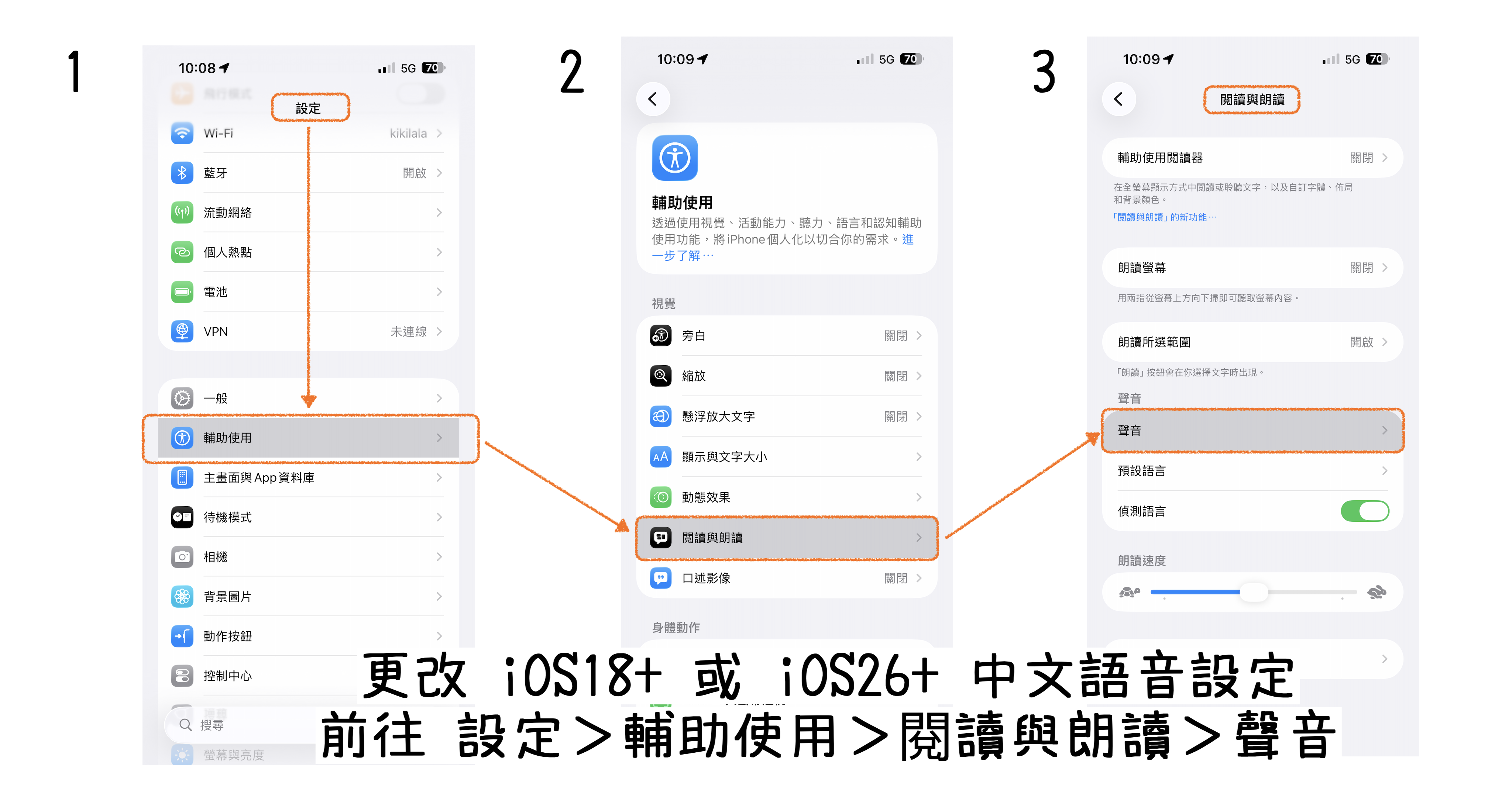
Steps 1-3: Settings > Accessibility > Spoken Content (iOS 15-18) / Read & Speak (iOS 26+)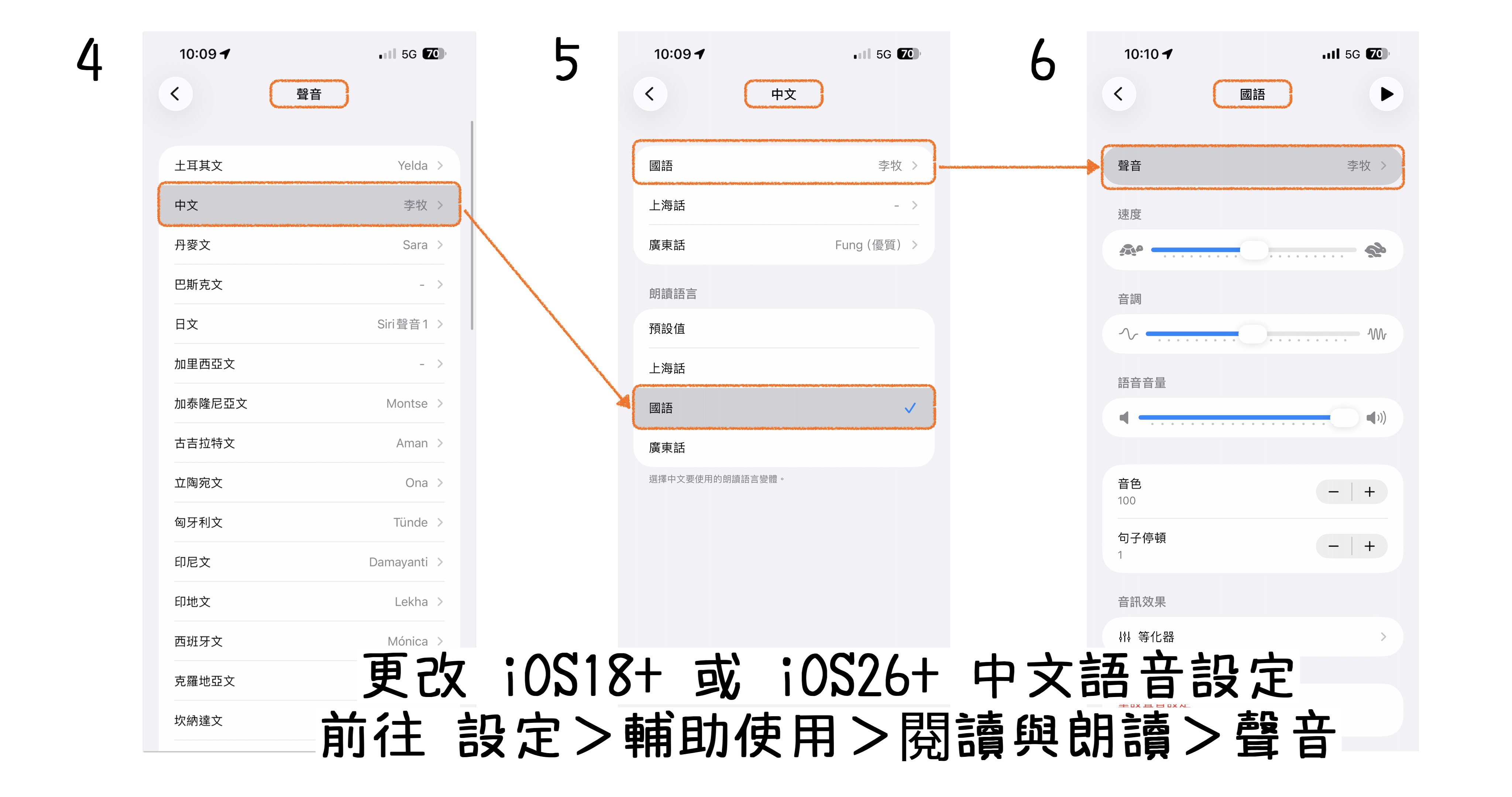
Steps 4-6: Select Chinese > Choose Mandarin > Select a voice - How do I set up Chinese TTS voice on iOS 15?
- On iOS 15, you can configure Chinese TTS voices through the Spoken Content settings.
Go to: Settings > Accessibility > Spoken Content > Voices > Select language and choose voice
Steps:
1. Open Settings (設定)
2. Tap Accessibility (輔助使用)
3. Tap Spoken Content (語音內容)
4. Tap Voices (聲音)
5. Select Chinese (中文)
6. Choose your preferred variant (Hong Kong, Mainland, or Taiwan)
7. Select and download a voice
See the image below for a visual guide.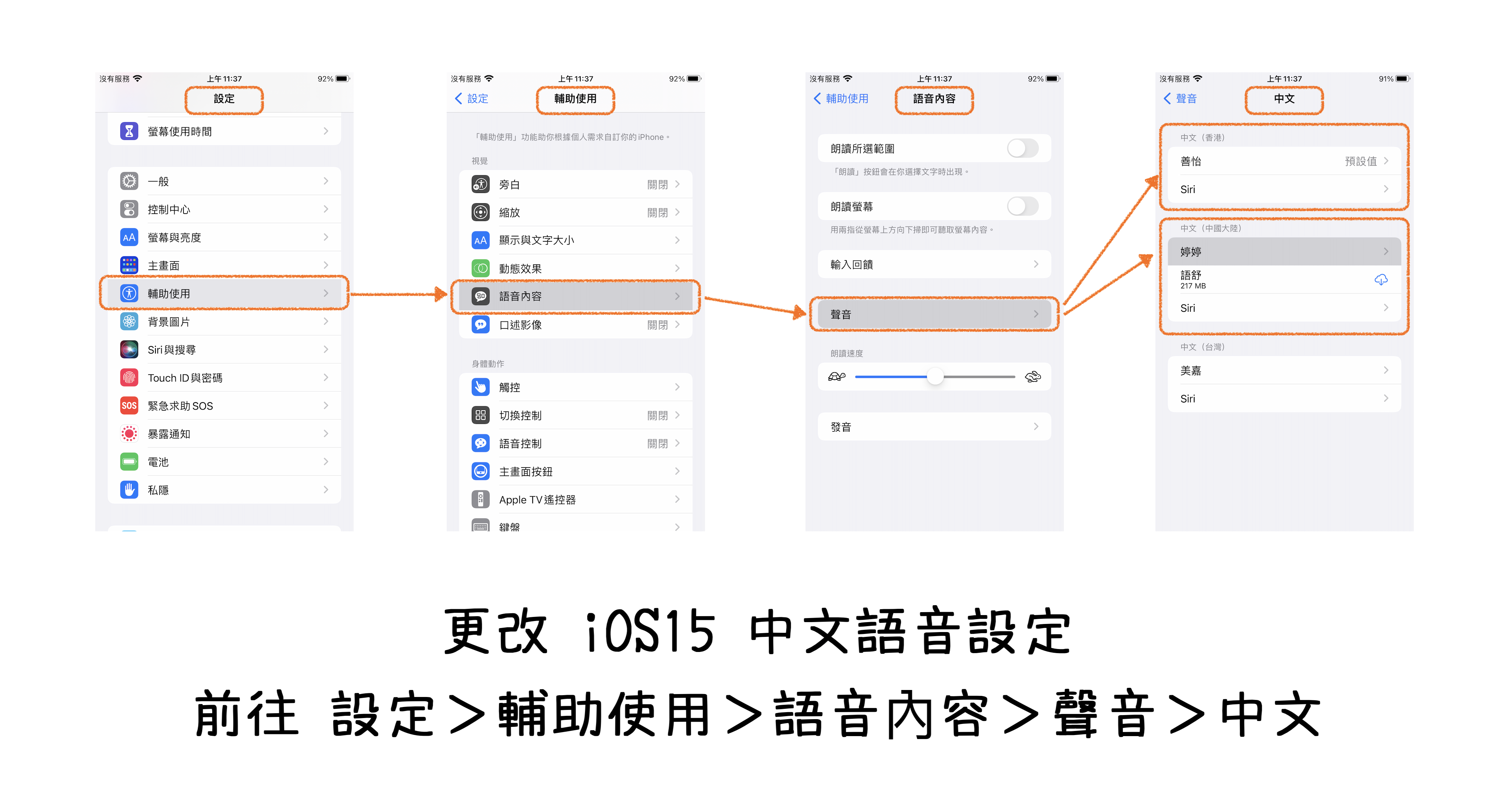
iOS 15: Settings > Accessibility > Spoken Content > Voices > Chinese
Can't find the answer you're looking for? Contact our support team. support@readstory.app